
Editor guide
Every Accordion Editor feature: importing scores, automatic layout and fingering, editing, markings, checking, and export to a player file, MusicXML and PDF.
Account and subscription
The editor works by subscription or after a one-time purchase. At the first launch a sign-in window appears: press “Sign in with the browser”, sign in on the site and confirm the device with a code. The toolbar on the right has an account menu: the subscription state, the “My apps” page and sign-out.
- The first days are free: choose a plan in your account and add a card. The date and amount of the first charge are visible in advance, and you can cancel before that date.
- The editor checks the subscription at launch and about every half hour. Offline it works for up to seven days after the last check.
- When the subscription ends, a “No access to the editor” window with a “Renew the subscription” button appears over the editor. Open projects do not disappear: the window only covers them.
- The web version of the editor opens in your account, in the “Editor” section. LilyPond import is not available in it.
The editor window
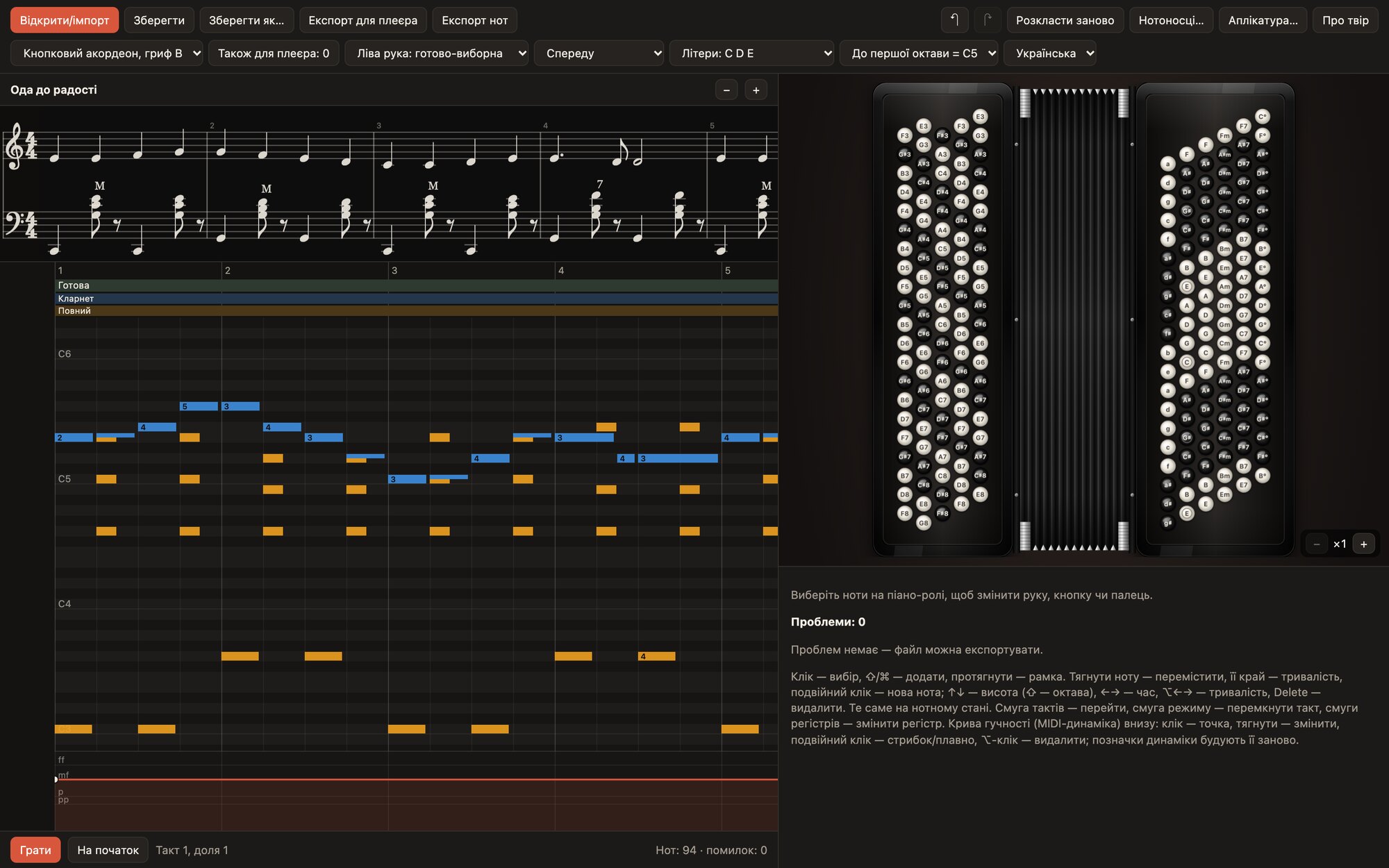
- The top row of buttons: “Open/import”, “Save”, “Save as…”, “Export for player”, “Export score”, undo and redo, “Re-arrange”, “Staves…”, “Fingering…”, “Score info”.
- The second row: the instrument, “Also for the player”, the left-hand system, the view, octave numbering, the language.
- On the left: the staff, and under it the piano roll with the mode and register tracks and the loudness curve.
- On the right: the instrument model, the panel of selected notes and markings, the list of issues and hints.
- At the bottom: “Play”, “To start”, the position and the number of notes and errors.
Import and projects
Open or import
“Open/import” accepts MIDI (.mid), MusicXML (.musicxml, .xml, .mxl), MuseScore 3–4 (.mscz, .mscx), LilyPond (.ly) and editor projects (.accproj). Before importing, choose the instrument and the left-hand system in the second row: the piece will be laid out with them.
Staves and hands
If the file has several staves or tracks, an “Import: staves and hands” window opens. For each you see the number of notes and the range, and the “Hand” column offers a choice: Auto (the editor splits by pitch), Right, Left or Skip. The instrument and the left-hand system are chosen here too, and at the bottom you see how many errors and warnings there will be after arranging. Later this window opens with the “Staves…” button.
LilyPond
.ly files are programs, so the editor does not parse them itself but runs an installed LilyPond 2.24+ and gets the notes and markings from it. If LilyPond is not found, the editor tells you where to get it.
Saving
“Save” writes the .accproj project (it holds everything: the notes, manual edits, fingering preferences, layouts for other instruments). “Save as…” saves under a new name.
The instrument and the left hand
The list of instruments: button accordion B griff, button accordion C griff, piano accordion. All have 120 basses and a converter switch of the left hand to the free-bass system. Changing the instrument keeps the layout for the previous one, so you can return to it.
| Left-hand system | How it is laid out |
|---|---|
| Converter (combined) | The editor decides bar by bar: where the notes form basses and chords, Stradella; where they do not, free bass. |
| Stradella | Only basses and chords. Notes that do not fit are moved by an octave or removed (with a warning). |
| Free bass | Each note is a separate button, as in the right hand. |
| Set by bar | You switch the mode of each bar yourself by clicking the mode track above the piano roll. |
Also for the player
The “Also for the player” menu adds other instruments to the file. A student switches them in the player settings. For each, the layout made in the editor is used (switch the instrument to change its fingering or registers), and if there is none, an automatic one.
Layout and fingering
After import the editor chooses a hand, a button (or a Stradella bass/chord) and a finger for every note. “Re-arrange” repeats this for the whole piece without touching manual edits.
Fingering preferences
The “Fingering…” button opens the preferences, which are stored in the project:
| Preference | Options |
|---|---|
| Rows’ own fingers (4-3-2) | Strict, Preferred, Off |
| Thumb (right hand) | Rarely, Sometimes, Freely |
| Duplicate rows | Avoid, When helpful |
| Fifth finger | Normal, Avoid |
| Repeated melody note | Change finger, Same finger |
| Repeated bass or chord | Same finger, Alternate |
The first three items concern only the button right hand. “Defaults” returns the standard values.
Working with notes
Selecting
- Click to select a note; ⇧ or ⌘/Ctrl + click to add to the selection.
- Drag over empty space to select with a box.
- Esc clears the selection.
Changes with the mouse
- Drag a note to move it in time and in pitch.
- Drag its edge to change the duration.
- Double-click empty space for a new note.
Changes with the keys
- ↑ ↓ move by a semitone, with ⇧ by an octave.
- ← → move in time by a grid step, with ⌥/Alt they change the duration.
- Delete or Backspace deletes.
- ⌘Z / ⇧⌘Z (Ctrl+Z / Ctrl+Y) undo and redo.
All of this works on the staff above the piano roll too: you can select, drag and add notes right in the music, and while dragging you can see where the note will land.
Hand, button, finger
- The panel of selected notes shows the hand, button and finger; the “Right” and “Left” buttons move notes to the other hand.
- To assign a button, select the notes and click the button on the instrument. The editor will not let you pick a button that does not give this note in the current mode.
- The finger is set with the keys 1–5 or the buttons on the panel.
- A manual choice is locked (the “Set by hand” counter) and does not change when you re-arrange. “Release” hands the decision back to the editor.
Skipped notes
Notes can be skipped: they stay in the project but do not play and are not shown in the player. “Bring back” restores them.
Markings
The “Marks” panel applies to the selected notes:
| Marking | What it does |
|---|---|
| Staccato | A dot above the note; in the player the note sounds half as long. |
| Accent | The sign >; the note sounds louder. |
| Slur | An arc from the first to the last selected note (at least two must be selected). |
| Respell | Write the note under another name: C♯ ↔ D♭, E ↔ F♭. |
| In brackets | The note is written in brackets and does not play; this marks the bass under a chord from another bass. |
Bellows
The “Bellows” row: “› push” and “⌉ pull” set a change of bellows direction on the first selected note; “Clear” removes it. The markings are visible above the staff in the editor, the player, the PDF and MusicXML.
Chord
The “Chord” row labels a left-hand chord: M (major), m (minor), 7 (seventh), dim (diminished) or your own text in the “other…” field (Enter saves). “Clear” removes the label.
If the imported score has no chord names and basses in brackets, the editor fills them in itself: the name where the chord changes, and the bass in brackets when the chord follows a foreign bass (once per bar).
Dynamics
The “Dynamics” row: pp, p, mp, mf, f, ff set a marking on the first selected note; < and > are crescendo and diminuendo over the selected notes. Dynamic markings rebuild the loudness curve.
Registers
Above the piano roll are the register tracks of the right and left hand. Clicking a bar opens a choice: the register from this bar or “No change”. Registers from the score (MusicXML, MuseScore) carry over automatically.
Ornaments
Trills, mordents, turns, tremolos and grace notes from the score are written out as notes. Select an ornament (“Select ornament”) to change its variant (a trill from the upper or main note, fast; an upper or lower mordent; tremolo 1/16 or 1/32), fold it into one note, or unfold it again.
The loudness curve
Under the piano roll is the loudness curve (MIDI dynamics), which in the player controls the strength of the sound, like the bellows. Click for a new point, drag to change it, double-click for a jump or a smooth transition, and ⌥/Alt-click to delete a point. Dynamic markings build the curve by themselves; edit it by hand for fine shades.
Checking: the list of issues
On the right is “Issues: N”. Clicking an issue selects its notes. Export is possible only without errors; warnings do not get in the way.
| Issue | How to fix it |
|---|---|
| A note out of the hand’s range | Move the note by an octave or to the other hand. |
| The notes do not form Stradella basses and chords | Switch the bar to the free-bass system or change the notes of the chord. |
| Too many simultaneous notes for one hand | Move some notes to the other hand or skip the extra ones. |
| A note without a hand | Assign a hand on the panel of selected notes. |
| The button is pressed again while it is held | Shorten the previous note or choose a duplicate on another row. |
| One finger holds two buttons, More buttons than fingers | Change the fingers or “Re-arrange”. |
| No finger given, Invalid finger | Assign a finger with the keys 1–5. |
| The button is silent in this mode, The button does not give this note | Choose another button or change the left-hand mode. |
| The note was moved by an octave (warning) | That is how it fitted the keyboard. Check that it sounds good. |
| The note was removed (warning) | The Stradella system does not give this note; switch the bar to free bass if it matters. |
Score info
The “Score info” button opens the texts that are printed in the PDF and written to MusicXML and the player file:
- Title, Subtitle, Composer.
- Tempo is a word (Moderato), a number of quarter notes a minute (96) or both (Moderato 96). The number also changes the playback tempo at the start of the piece; the word alone is only printed.
- Copyright goes at the foot of the first page of the PDF.
Playback in the editor
“Play” at the bottom plays the piece with the instrument on the right, as in the player. Clicking the bar strip above the piano roll moves the position to that bar.
Export
For the player
“Export for player” saves an .accplay with all the instruments chosen in “Also for the player”. If there are errors, the editor shows their number and does not export.
Music: MusicXML and PDF
“Export score” → MusicXML saves a MusicXML 4.0 score for MuseScore, Sibelius, Finale, Dorico: both hands on two staves, slurs, articulation, dynamics, bellows (SMuFL), registers, chord names, basses in brackets, title, subtitle, composer, tempo, copyright.
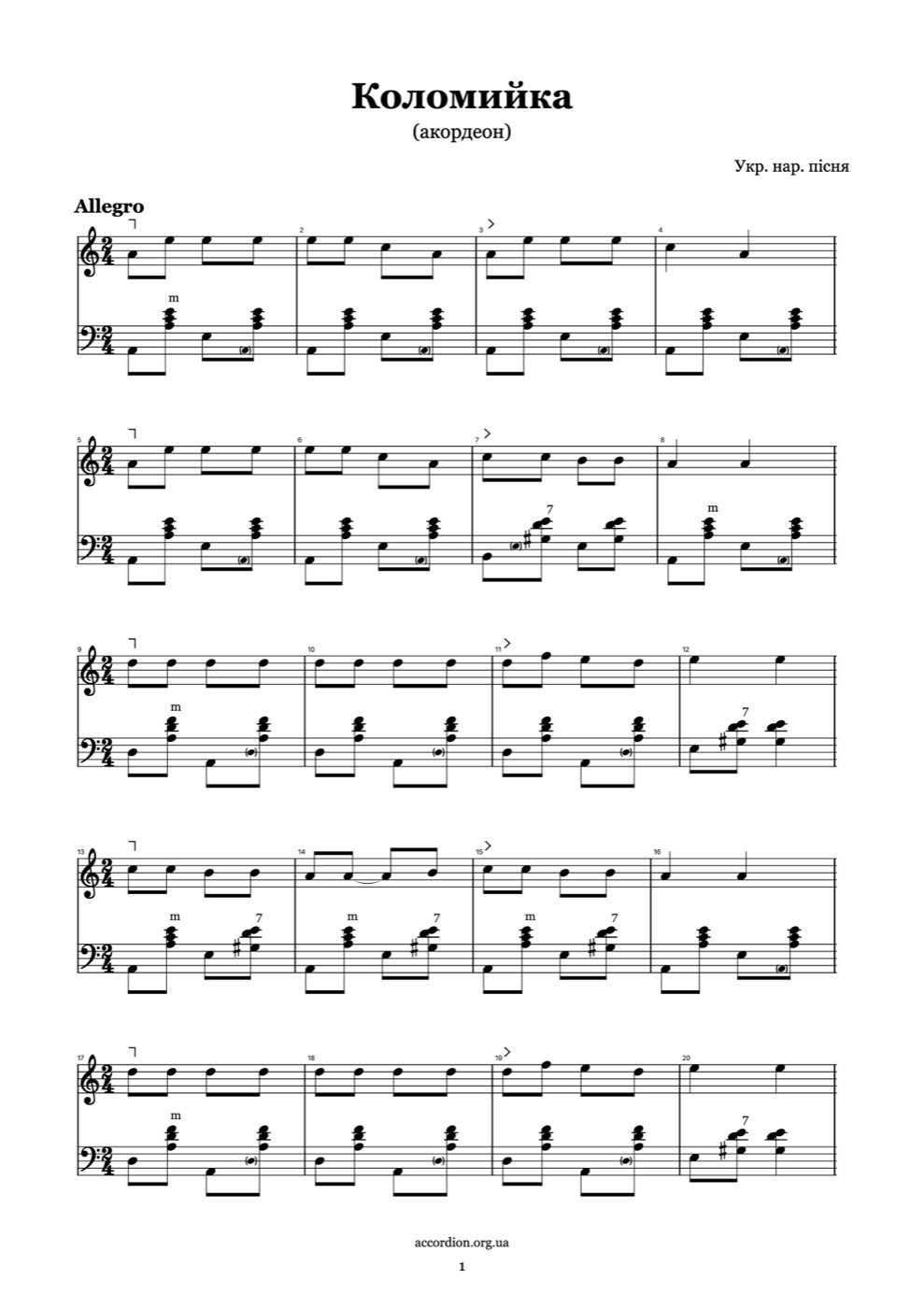
“Export score” → PDF lays the music out on A4 pages: systems of whole bars justified to the width, the spacing between notes depends on duration, and the staves move apart where notes go far beyond the lines. The end has a double barline.
Submitting to the library
A finished player file (.accplay) can be submitted to the piece library on the site: in your account open “My pieces in the library”, choose the file and send it for review. First check that the list of issues is empty and that the title is filled in under “Score info”. Details are in the library guide.