Getting started
How to install Accordion Player, start a demo piece and open your first file: a ten-minute guide for macOS, Windows, Linux, Android and iOS.
Installing
Download the program for your system on the “Download” page.
- macOS: open the
.dmgand drag the program into Applications. If macOS warns about an unknown developer, right-click the program → “Open”. - Windows: run the
.exeinstaller. If SmartScreen appears, “More info” → “Run anyway”. The program installs for your user only, and administrator rights are not needed. - Linux:
sudo apt install ./accordion-player_*.deb(Debian, Ubuntu),sudo dnf install ./accordion-player-*.rpm(Fedora), or make the.AppImageexecutable and run it. - Android: install from Google Play or from the APK file (allow installing from this source).
- iPhone and iPad: from the App Store.
- In the browser: nothing needs installing. The player demo is on the home page, and the full player and the editor open in your account after sign-in.
Account
The player works without an account. An account is needed for the editor, for the player and editor in the browser, and to manage a subscription. Create it on the site: the “Sign in or register” section.
- Open the editor: a window “Sign in to use the editor” appears. Press “Sign in with the browser”.
- A page of our site with a device code opens in the browser. Sign in or register and press “Allow” when the code matches the one in the program.
- The program signs in by itself. You never type a password in the program. The editor is free for the first days: choose a plan in your account, in the “My apps” section.
All the devices you are signed in on are visible in the “My apps” section of your account, and you can sign out of any of them from there. You can have up to five devices at once. The editor works offline for up to seven days after the last subscription check.
First launch of the player
- Open the player. The empty screen shows the hint “Open an .accplay file or start a demo”.
- In the “Demo” menu at the top choose “Button accordion”, “Piano accordion” or “Ode to Joy”.
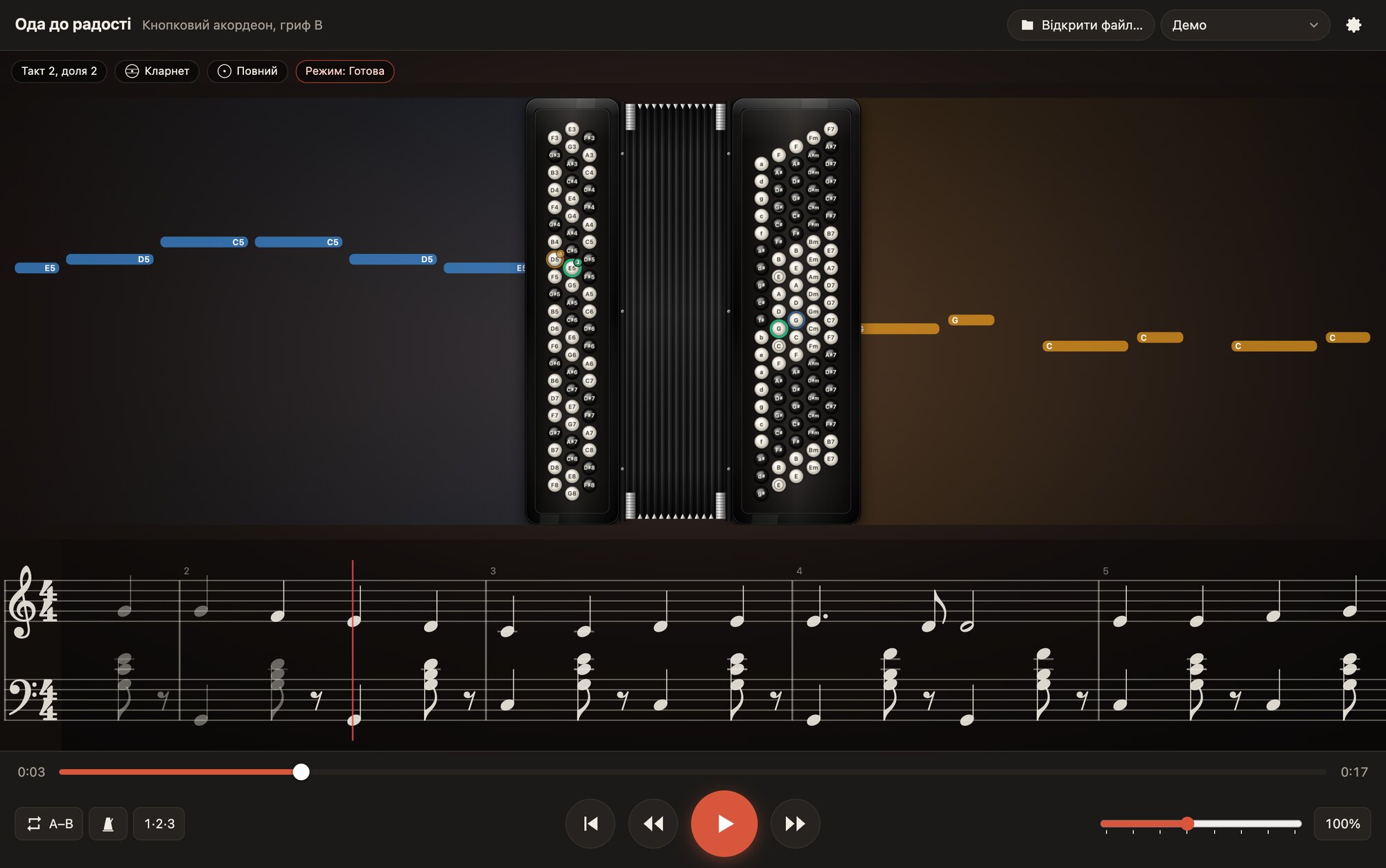
- Press the big red “Play” button (or Space). The buttons on the instrument start to light up, and the notes float in from the sides.
- Open the settings (the gear at the top right) and choose the view, the labels and what to show.
Your first own piece
- Prepare the music in MuseScore, Sibelius, Finale, Dorico, LilyPond or any editor that saves MusicXML or MIDI.
- In the editor press “Open/import” and choose the file.
- If the score has several staves or tracks, a “Staves and hands” window appears: assign each a right or left hand or skip it, choose the instrument and the left-hand system, and press “Import”.
- Look at the “Issues” panel on the right: if it says zero, the piece is ready. If not, click an issue and the editor selects the notes that need fixing.
- Press “Export for player” and save the
.accplayfile. - Open this file in the player with the “Open file…” button on any device.
Also save the project (“Save”, the .accproj file): it keeps all your edits, fingering preferences and layouts for other instruments. The .accplay file is for the player only.
What next
- Player guide: all the playback, practice and Full HD video recording features.
- Editor guide: how to get a perfect layout.
- Keyboard shortcuts: to work faster.