Player guide
Every Accordion Player feature: playback, the instrument, labels, A–B loop, metronome, tempo, full screen, video recording, settings and the browser version.
The player screen
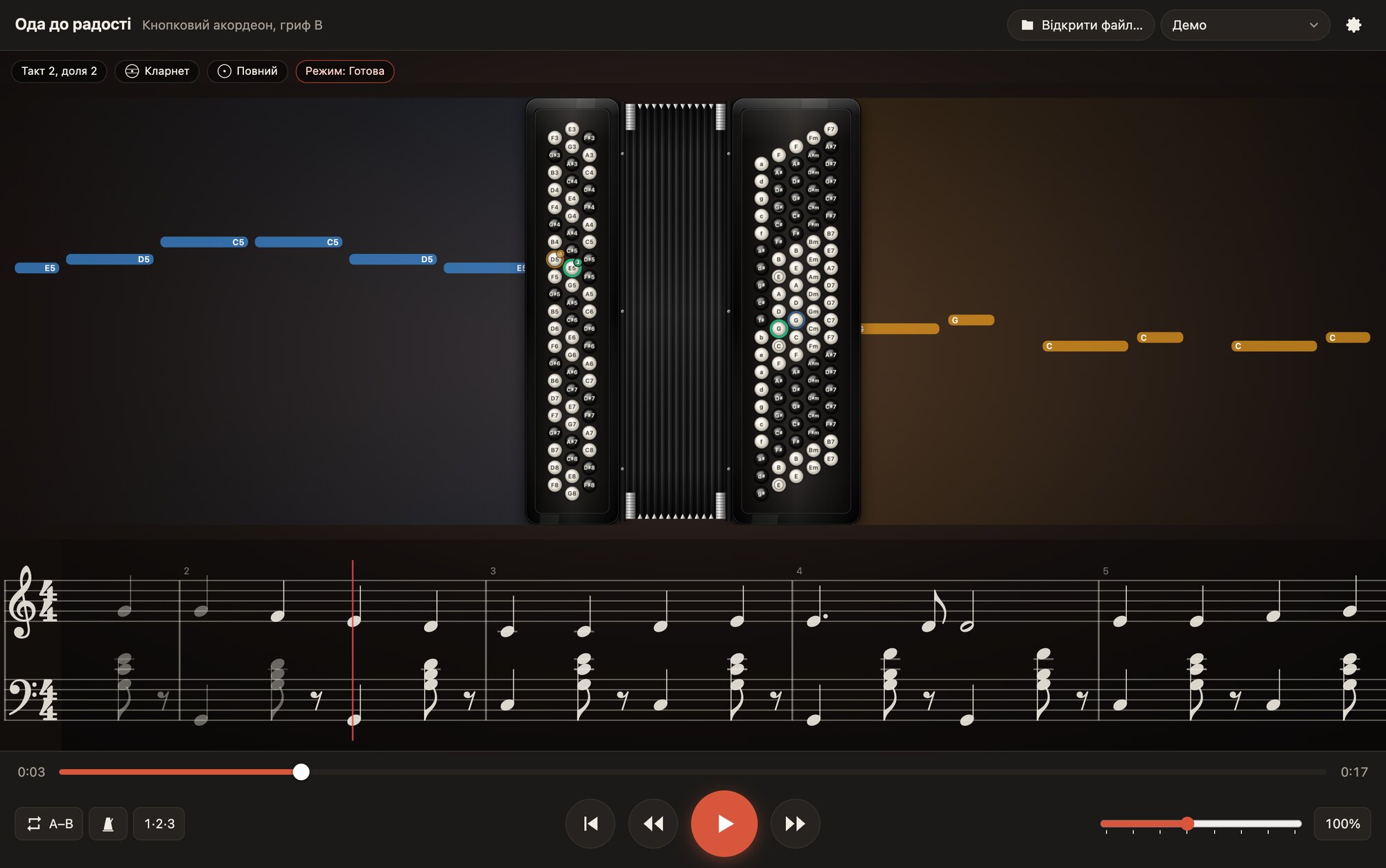
The screen has five parts, from top to bottom:
- The top bar: the title of the piece and instrument, the “Open file…” button, the “Demo” menu and the settings button.
- Status indicators: the current bar and beat, the right-hand register, the left-hand register and the left-hand mode.
- The stage: the accordion model and note lanes on both sides.
- The staff (if turned on) under the instrument.
- Controls: the timeline and the buttons for playback, practice and tempo.
Opening pieces
.accplay files
The “Open file…” button opens an .accplay file made by the editor. On a phone it is shown as a folder icon. If the file was prepared for several instruments, an “Instrument” switch appears in the settings.
Demo pieces
The “Demo” menu holds the built-in pieces: a waltz for button accordion, the same waltz for piano accordion and “Ode to Joy”. They are always at hand, even offline.
Error messages
| Message | What to do |
|---|---|
| This is not an .accplay file | Open a file exported by the editor with the “Export for player” button. Import MusicXML, MIDI and other files into the editor first. |
| The file is damaged | The file was cut off during copying or downloading: export or copy it again. |
| The file was made with a newer editor | Update the player to the latest version. |
| The file contains errors | Open the project in the editor, fix the issues from the list and export again. |
| Warnings in file: N | The piece plays, but some of the data is imprecise (for example, a note out of range). You can usually ignore this. |
The instrument on the screen
What lights up
- A coloured button sounds now. The colour matches the finger, which makes the fingering easier to remember.
- A button with a rim that emerges will sound soon; the closer the moment, the brighter it is.
- Marked duplicates are other buttons with the same sound on the auxiliary rows (if “Duplicates on auxiliary rows” is turned on).
Labels on the buttons
In the “Labels” setting: Notes (note names with the octave: C5, F#4; on the basses, the names of basses and chords: C, Am, G7), Fingers (the number of the finger that plays the pressed button) or No labels, to test yourself.
Note names
How notes are named on the buttons, on the note lanes and in the editor is chosen in the “Note names” setting:
- Letters: C D E F G A B (C♯, D♯…).
- German letters: C Cis D Dis E F Fis G Gis A B H.
- Solfège: Do Re Mi Fa Sol La Si.
- Solfège in Cyrillic: До Ре Мі Фа Соль Ля Сі.
A minor chord on the basses is written in the chosen style: Am, Lam or Лям. A label always shrinks to fit the button, and if the button is tiny, the label is not shown so that it does not spill over the edge.
View
Front (audience) shows the right keyboard on the left, as a spectator looks at it. Player’s eyes shows the instrument as you see it leaning over it: the left hand on the left, the right hand on the right.
Octave numbering
Middle C = C5 is the usual choice in our music schools. Scientific puts middle C at C4, as in MIDI and most English-language textbooks.
Zoom
You can enlarge the instrument and look at it close up: pinch on the screen or press Ctrl/⌘ with “+” and “−” on a computer. The buttons, note labels and finger numbers are redrawn at a higher resolution, so they stay sharp.
Indicators above the instrument
- Bar N, beat M shows where you are in the piece.
- The right-hand register and the left-hand register show a register icon (a circle with dots that mark the voices) and a name. Right hand: Clarinet, Bassoon, Piccolo, Bandoneon, Oboe, Organ, Harmonium, Accordion, Tutti and so on; left hand: Full, Soft (4′), Deep (16′), Tutti. The editor records the registers, and the player changes them during play.
- Mode is for instruments with a left-hand switch: “Stradella” or “Free bass”. It changes during play wherever the piece says so.
- The loop appears when the A–B loop is on: “Loop: bars 5–8”.
Note lanes
The notes “float” toward the instrument: the length of a lane is the duration of the note, and its vertical position is the pitch. Blue is the right hand, amber the left. The lane is labelled with the note or finger (as on the buttons). Turn them on in the settings (“Notes ahead”) or with the N key.
The staff
Under the instrument is the notation for both hands: a treble clef for the right and a bass clef for the left. It shows durations, rests, stems, slurs, staccato, accents, dynamics and hairpins, bellows (› push, ⌉ pull), registers, chord names (M, m, 7, dim) and basses in brackets. The red line is the current position, and the notes that sound are coloured in the finger’s colour.
On a phone there is too little room for the staff under the instrument, so it appears only in full-screen mode: the “Staff (on a phone, in the full-screen mode)” item.
Playback
| Button | Action | Key |
|---|---|---|
| / | Play / pause | Space |
| To the start | Home | |
| A bar back (to the start of the current bar, if you are already far into it) | ← | |
| A bar forward | → | |
| The timeline | Jump to any place: click or drag the slider | — |
While the piece is paused, the instrument shows the presses at the current position, which is handy for studying a hard chord.
Practice
A–B loop
The A–B button (or L): the first press sets the start of the loop at the current bar, the second sets the end, and the third turns the loop off. The chosen bars repeat without stopping until you turn the loop off.
Metronome
The button with a pendulum (or M) turns on a click on every beat, with the first beat of the bar accented.
Count-in
The 1·2·3 button turns on one bar of count-in before the start. If the piece begins with a pickup, the count-in fills it out to a full bar.
Tempo
The slider on the right changes the tempo from 25 to 200% in steps of 25%, and the pitch does not change. The button with the percentage returns to 100%.
Each hand separately
In the settings the left and the right hand each have two switches: show (presses on the instrument, lanes, notes) and sound. Turn off the sound of the right hand and play the melody yourself over the player’s accompaniment.
Full-screen mode
The “Full screen while playing” item: after you press “Play”, everything disappears except the instrument, the note lanes and the staff, and a pause button stays in the top right corner. The “Delay before playing” (0–10 s) gives you time to pick up the instrument: a countdown runs on the screen. Pause brings back the usual view.
On phones and tablets the player always runs full screen without system bars. On Android the settings have an “Exit” button.
Settings
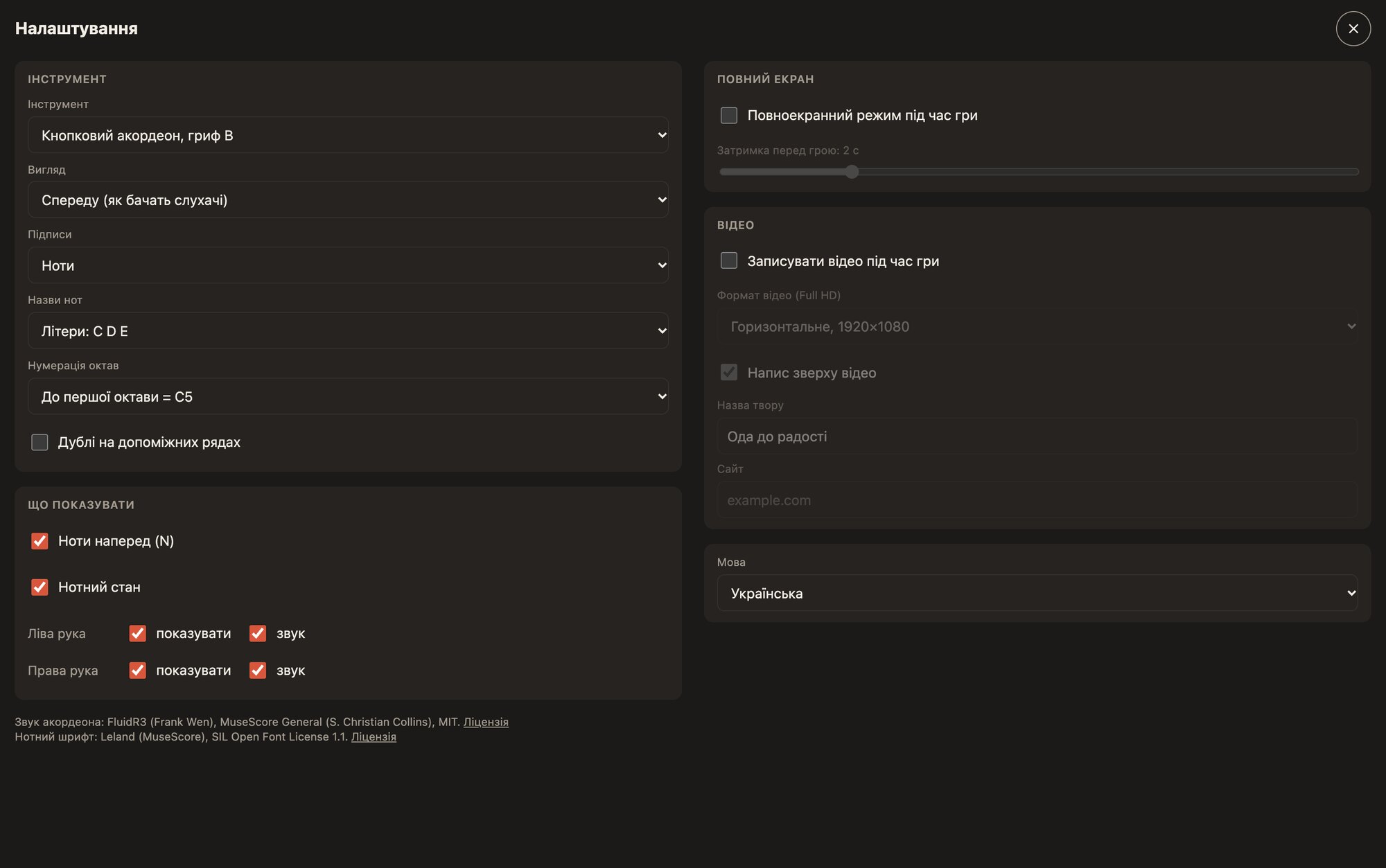
| Group | Item | What it does |
|---|---|---|
| Instrument | Instrument | Switches the piece to another instrument if the file was prepared for several. |
| Instrument | View | Front, or the player’s eyes. |
| Instrument | Labels | Notes, fingers or no labels. |
| Instrument | Note names | Letters, German letters or solfège (Latin or Cyrillic). |
| Instrument | Octave numbering | C5 or C4 for middle C. |
| Instrument | Duplicates on auxiliary rows | Shows other buttons with the same sound. |
| What to show | Notes ahead | Note lanes beside the instrument. |
| What to show | Staff | Music under the instrument. |
| What to show | Left / right hand | Display and sound for each hand. |
| Full screen | Full screen while playing | During play, only the instrument and the notes. |
| Full screen | Delay before playing | 0–10 seconds of countdown. |
| Video | Record a video while playing | Records the screen with sound from “Play” to pause. |
| Video | Caption on top of the video | A strip with the title of the piece and the site at the top of the frame. |
| Video | Piece title | Taken from the file, can be changed. |
| Video | Website | The address of your site or channel; it is remembered. |
| — | Language | Ukrainian or English. |
All settings are kept between launches on this device.
Video recording
Video recording is free on all platforms. A small link to our site is added automatically at the bottom of every video; it cannot be turned off.
- In the settings turn on “Record a video while playing”, choose the video shape, and if you like turn on “Caption on top of the video” and enter your site.
- Press “Play”. A ● Recording indicator appears at the top. Recording runs from the start (the count-in included) to a pause or the end of the piece.
- After you stop, the player offers to save the file: choose a folder and a name. A notification at the bottom of the screen confirms where the file was saved.
- Two shapes: horizontal 1920×1080 and vertical 1080×1920. On phones vertical is the default, on computers horizontal.
- The size does not depend on the window: the video is drawn separately in Full HD, so it is the same on any screen. A vertical video has the mobile player’s layout.
- The staff gets into the video only if it is turned on in the settings.
- File format: MP4 (H.264 video, AAC sound) where the system supports it, otherwise WebM; 30 frames per second.
- What is in the frame: the instrument, the note lanes, the staff, the caption on top and the link to our site at the bottom. The control buttons do not get into the frame.
For short clips on social networks, choose vertical video and a slower tempo for working through hard passages.
The piece library
The site has a closed library of pieces that editor users submitted and we approved. In the web player it opens from the piece page with the “Play full screen” button. The access terms and how to submit pieces are in the library guide.
In the browser
The player works in the browser too. A demo without your own files is open on the home page. The full player, in which you can open your own .accplay file, is free after you sign in: in your account open the “Player” section or go to /app/player.
Sound
The player plays recorded accordion samples (FluidR3 and MuseScore General) with the registers taken into account: several voices at once, as on a real instrument. The dynamics of the piece control the loudness, staccato sounds shorter and an accent louder.
If the sound disappeared after the computer slept or after a call on the phone, press pause and then “Play” again: the player will restart the sound by itself.